|
||
|
|
Common Issues |
| The following is the list of most questions people ask about WebMail. |
|
||
|
|
Autologin to WebMail |
If you are having problems logging into WebMail from SurgeMail then you should
try the following:
If none of the above works, contact WebMail support at:
|
|
||
|
|
Using WebMail with other clients |
| When using WebMail with other mail clients their is a number of things to
consider. The first is are you using POP or IMAP connections?
If you are using POP, then you should NOT be using both mail clients at the same time. As this can cause UID errors to apear in webmail. If you are using IMAP, then the main consern is setting up webmail and the other mail clients see the same folder list. If you are using SurgeMail which is our mail server the default installation of surgemail should be fine. If you are using another mail server or are setting Webmail on another machine you will need to determine what 'imap_prefix' is required for the mail server being used. SurgeMail uses an empty prefix while others I have see have used: ~/once you have determine which imap_prefix being used you should change/replace the 'webmail.ini' setting to match. imap_prefixFrom the point you added this ini setting all NEW users to webmail will then use this prefix. Current users of webmail will need to use the users option page to change the prefix being used. |
|
||
|
|
Locate WebMail.ini Error |
| This occurs when the CGI cannot locate the ini file. You should double
check that the ini file is in the same directory as the CGI. If it is,
it may be that the webserver has set up a workarea which is not at the
same location as the CGI.
You can either change the web server workarea for the CGI (you need to read your web server manual about this), or you can locate the file called:
As this file should have been created as long as it had access rights to do so in the workarea, placing the ini file in same location should solve the problem. If you cannot file the init.log file, you should try placing the ini file back one directory. On some NT/2000 web servers, scripts and cgi-bin directories are setup. You should try placing the ini in the cgi-bin, and then try placing the CGI there as well. If none of the above works, contact WebMail support at:
|
|
||
|
|
To tcode Message |
If you see a error screen like this:
This can be removed by adding the webmail.ini setting:
WebMail keeps tabs on the login page that people have used, and if they have already been used it will generate the above error message. This is to help stop hackers resubmitting a old webmail login page. But if you have setup your own HTML login page, the above error can occur so you will need to disable this to correctly login. |
|
||
|
|
Permission Access Error |
|
These errors indicate that the user,whom the WebMail CGI is being run as by your webserver,
does not have read and write access to all the files in your templates directory, and/or
does not have execute access to the webmail.cgi file and/or the template directories
(required to open directories).
You will need to use the 'chown' command and possibly the 'chmod' command to change the ownership of the WebMail files to allow WebMail to run correctly. e.g.:
The user whom the webserver runs CGI applications like WebMail as, is set in your webserver configuration files. For Apache webservers, the setting is in the httpd.conf file on lines like the following:
Note: You should generally only need to change the owner/group of the files. The read, write and execute permissions should be correct if the ownership's are correct. |
|
||
|
|
Failed Key |
| If you start getting a failed key this means that WebMail has expired, and you need to
talk to Netwin about purchasing WebMail.
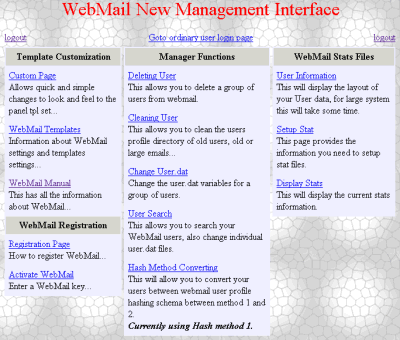
If you have already purchased WebMail and you have a WebMail key you will need to login via the managers interface and register WebMail. The screen will look something like this:
Select the 'Activate WebMail' on the bottom right of the screen, fill out the form and press the submit key, this will register WebMail. |